
CommSec multi-factor authentication

As scams and fraud continue to rise, CommSec has introduced multi-factor authentication to help protect accounts from unauthorised access.
CommSec multi-factor authentication, also known as MFA, is an additional security check when logging in to the CommSec website. MFA may ask for approval in the CommSec app after Client ID and password are entered.
Setting up MFA in the CommSec app
This is a one-time set up for a device.
Step 1
Log in to the CommSec app with Client ID and Password.
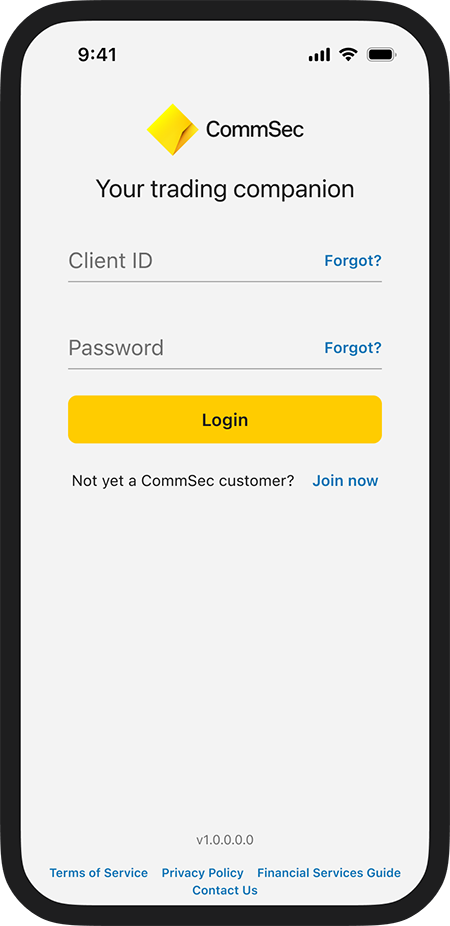
Step 2
When prompted, set up multi-factor authentication.
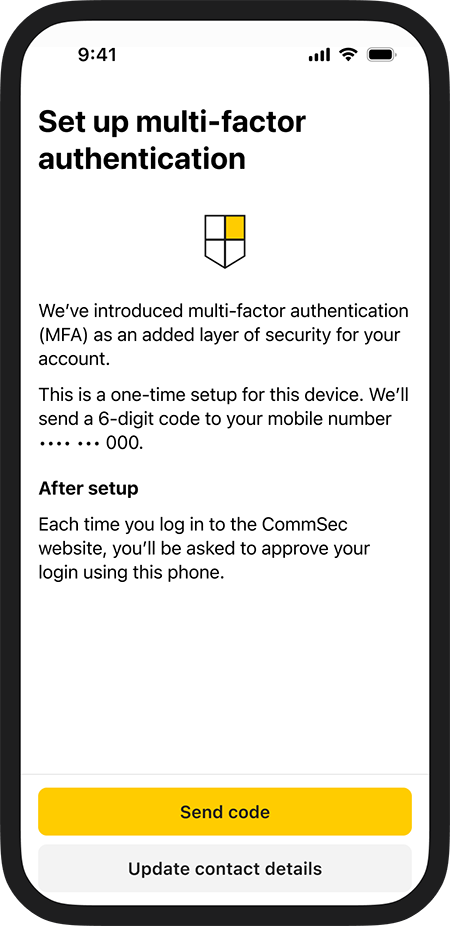
Step 3
A 6-digit security code will be sent by SMS to the mobile number registered to the CommSec account.
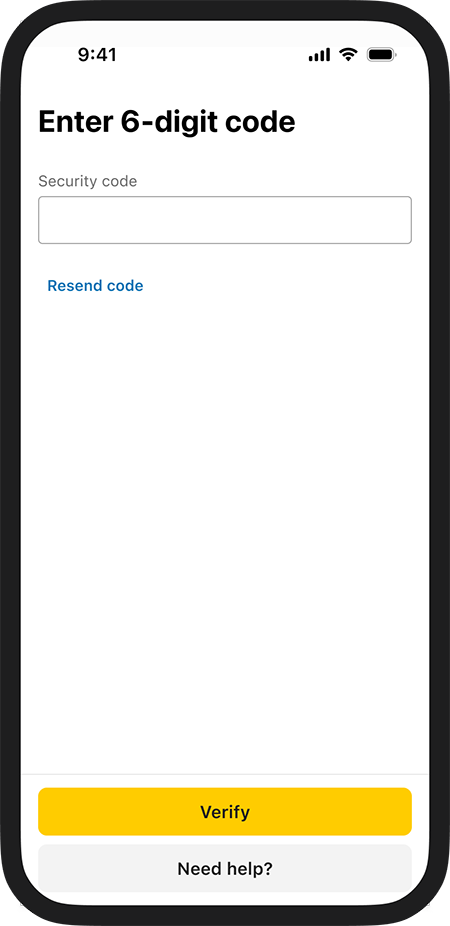
Step 4
Enter the 6-digit code in the CommSec app to finish setup.
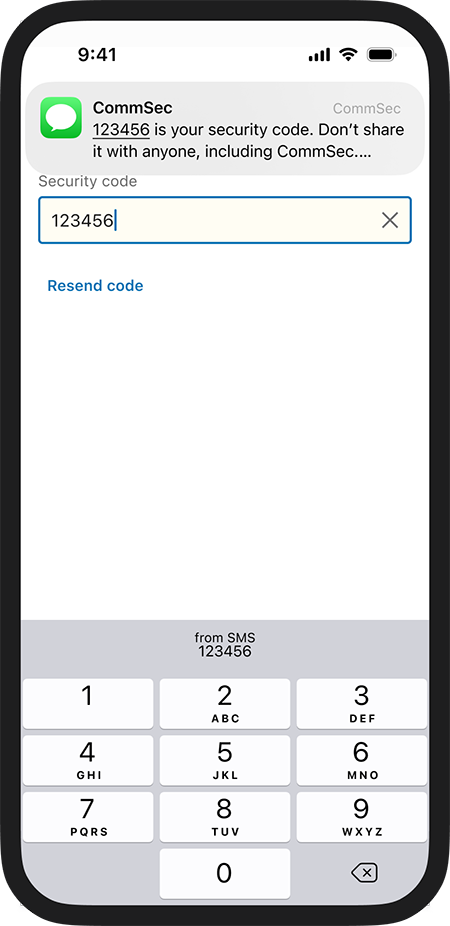
Once setup is complete, the CommSec app is a registered device for MFA.
SMS is only used to help set up the device. After that, website login requests will be required to be approved using the CommSec app.
Log into the CommSec website
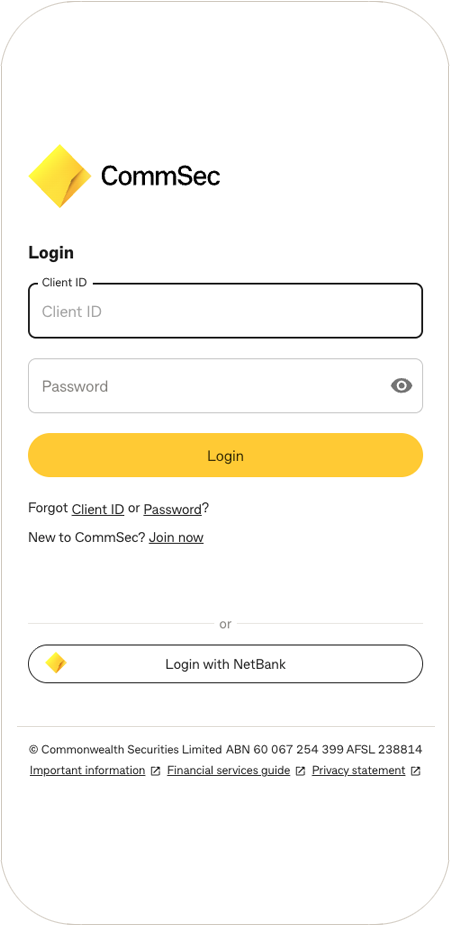
Step 1
Log in to the CommSec website with Client ID and Password.
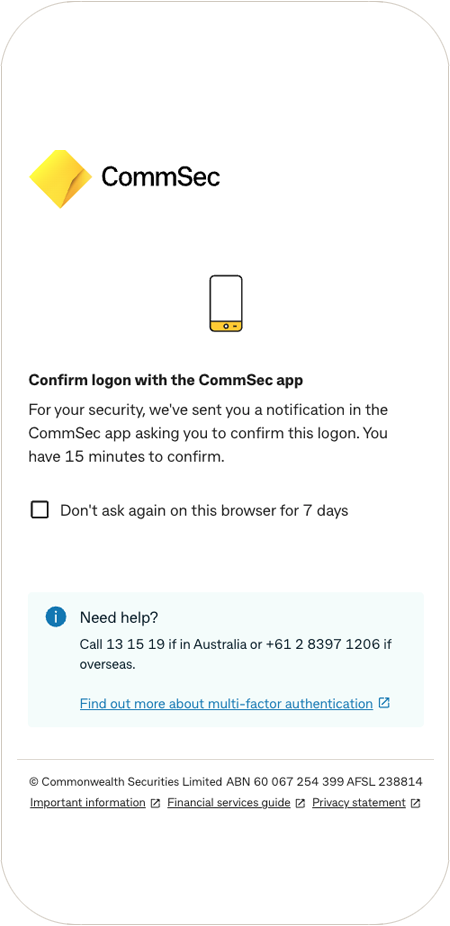
Step 2
Confirm the login using the CommSec app.
An option can be selected to not be asked again to MFA on that browser for 7 days.
Step 3
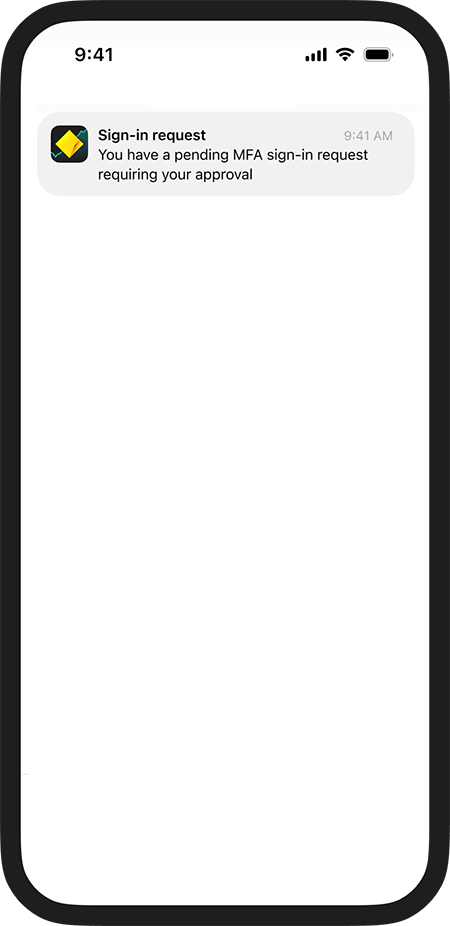
A notification will be sent to the registered device.
Tap the notification to open the CommSec app.
Step 4
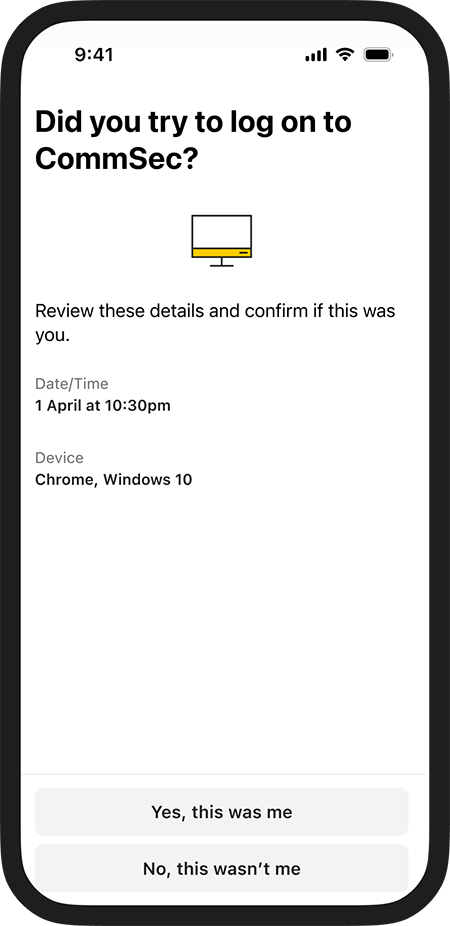
Check the login details, including the date, time and device.
Select Yes, this was me if you initiated the login.
Once approved, the website login will continue.
Unknown login attempts
Step 1
A notification will be sent to the registered device.
Tap the notification to open the CommSec app.
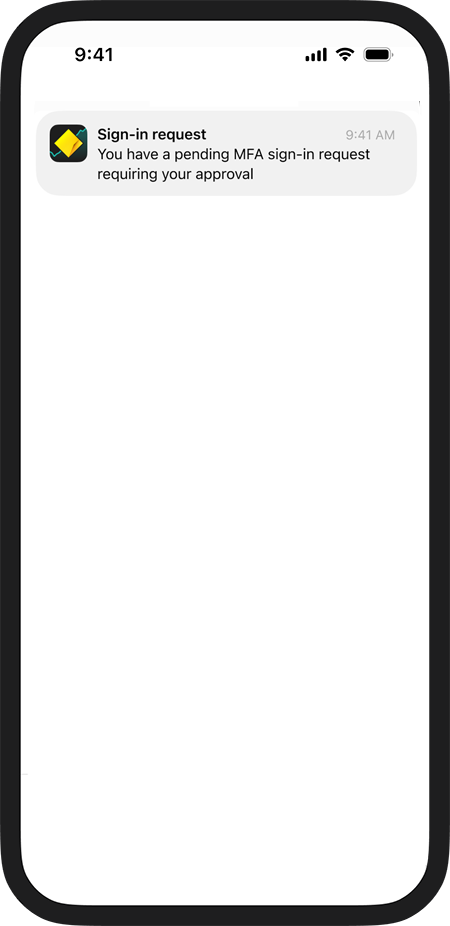
Step 2
If you don’t recognise the login, select No, it wasn’t me in the CommSec app.
This will decline the login attempt.
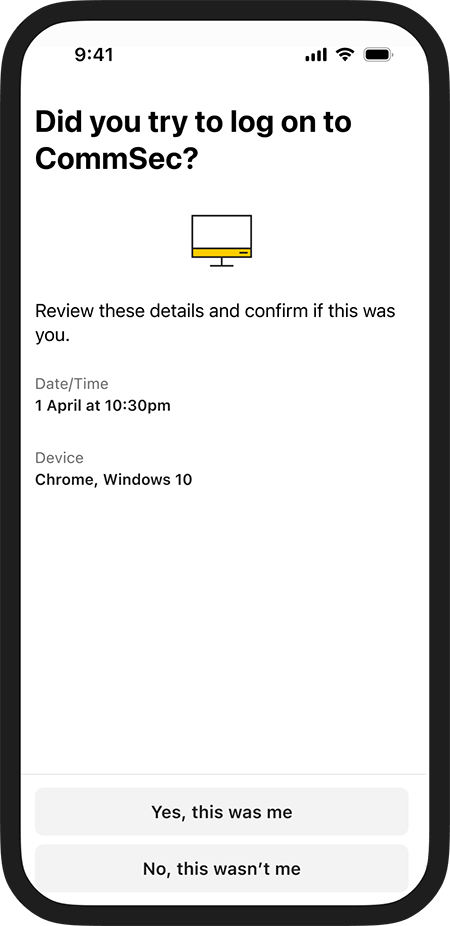
Step 4
A password reset option will be presented.
If concerned, you can contact CommSec on 13 15 19 for calls within Australia Monday to Friday, 8am to 6pm (Sydney time).
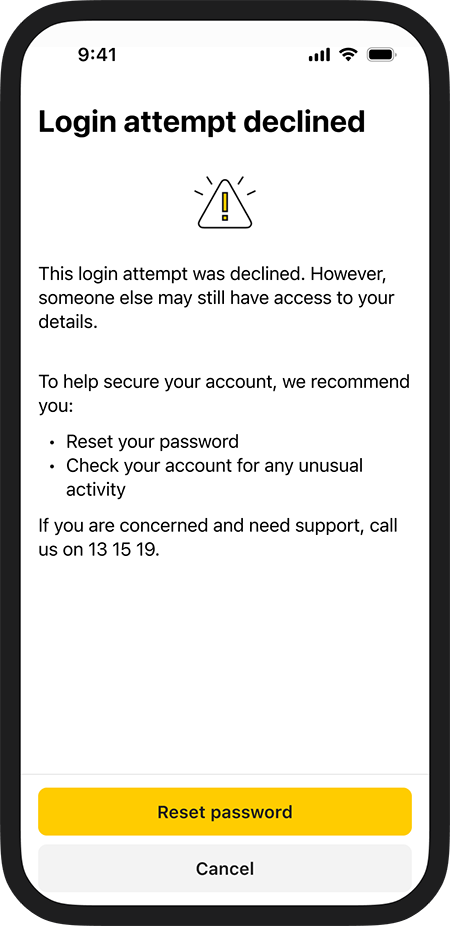
Your questions, answered
Multi-factor authentication is additional security when logging in to the CommSec website.
It uses two factors to help confirm the log in:
- Client ID and password.
- Registered CommSec app on a mobile device.
This helps protect an account from unauthorised access.
- Download or update the CommSec app and log in.
- When prompted, follow the steps to set up MFA on the device. A 6-digit security code will be sent by SMS to the mobile number registered to the CommSec account.
- Enter the code in the CommSec app to complete setup.
No. MFA is for CommSec website login only.
CommSec app log in can be completed using password, PIN or biometrics.
Not every time. After being approved for website login using MFA, an option can be selected to not be asked again to MFA on that browser for 7 days.
If there is no registered CommSec app device, CommSec website log in can continue using Client ID and password.
However, MFA is an additional security measure. You can download and set up MFA with the CommSec app to provide additional protection for website logins.
You can download the CommSec app on the new device and follow the steps to set up MFA again.
Access will be required to the mobile number registered to a CommSec account to receive the 6-digit SMS code. If access is not available to a registered device or mobile number, contact CommSec for further assistance.
First, check that notifications are turned on for the CommSec app in device settings. If a push notification still has not been received, open the CommSec app and check for the login approval request.
Check the internet connection and attempt the CommSec website log in again.
Try the following:
- Update the CommSec app to the latest version.
- Open the CommSec app before trying to log in to the website again.
- Check that the mobile device has internet connection.
- Check that notifications are turned on for the CommSec app.
If MFA still isn’t working, you can contact CommSec for help.
If a CommSec app login request is received and is not recognised, select ‘No, it wasn’t me’.
This will decline the login attempt.
A password reset should then be completed and the account checked for any unusual activity. If anything suspicious is noticed or support is required, contact CommSec.
MFA has been introduced as an additional security measure to help protect CommSec accounts.
If the CommSec app has been set up as a registered device, CommSec website logins may require approval through the app.
If there is no registered CommSec app device, website log in can continue using Client ID and password only.
If help is needed with account access or MFA, contact us.
The SMS code is only used when setting up MFA on a device.
After a device has been set up, the CommSec app is used to approve website login requests.
Yes. You can set up more than one compatible mobile device for MFA.
Each device will need to be set up using the CommSec app and a 6-digit SMS code sent to the mobile number registered to your CommSec account.
© Commonwealth Securities Limited ABN 60 067 254 399 AFSL 238814 (CommSec) is a wholly owned but non-guaranteed subsidiary of the Commonwealth Bank of Australia ABN 48 123 123 124 AFSL 234945. CommSec is a Market Participant of ASX Limited and TMX Australia Exchange Pty Limited, a Clearing Participant of ASX Clear Pty Limited and a Settlement Participant of ASX Settlement Pty Limited.
The information on this page has been prepared without taking into account your objectives, financial situation or needs. For this reason, any individual should, before acting on this information, consider the appropriateness of the information, having regards to their objectives, financial situation or needs, and, if necessary, seek appropriate professional advice.
CommSec does not give any representation or warranty as to the accuracy, reliability or completeness of any content on this page, including any third party sourced data, nor does it accept liability for any errors or omissions.