


CommSec multi-factor authentication

An extra layer of security to protect your CommSec account
CommSec multi-factor authentication, also known as MFA, helps protect your account by adding another security check when you log in to the CommSec website.
Instead of only using your Client ID and password, MFA may also ask you to approve your website login using your registered CommSec app.
This helps confirm it’s really you logging in.
Setting up MFA in the CommSec app
This is a one-time set up for your mobile device.
Step 1
Log in to your CommSec App with your Client ID and Password.
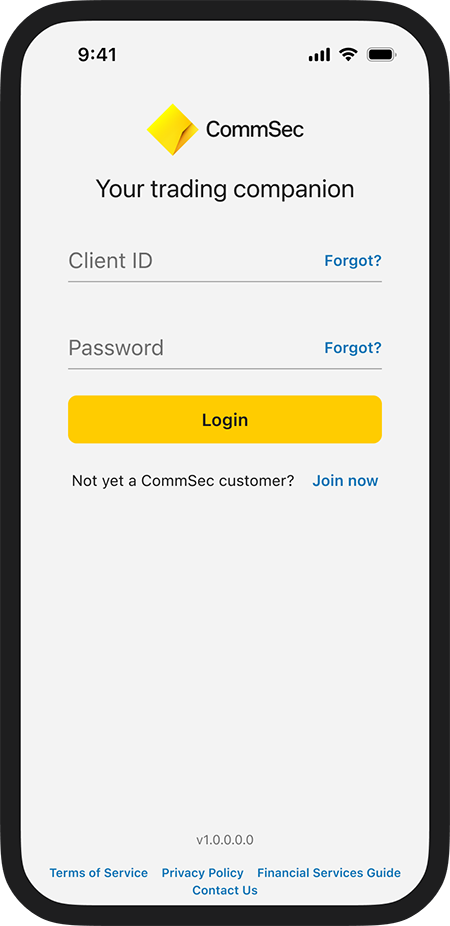
Step 2
When prompted, set up multi-factor authentication.
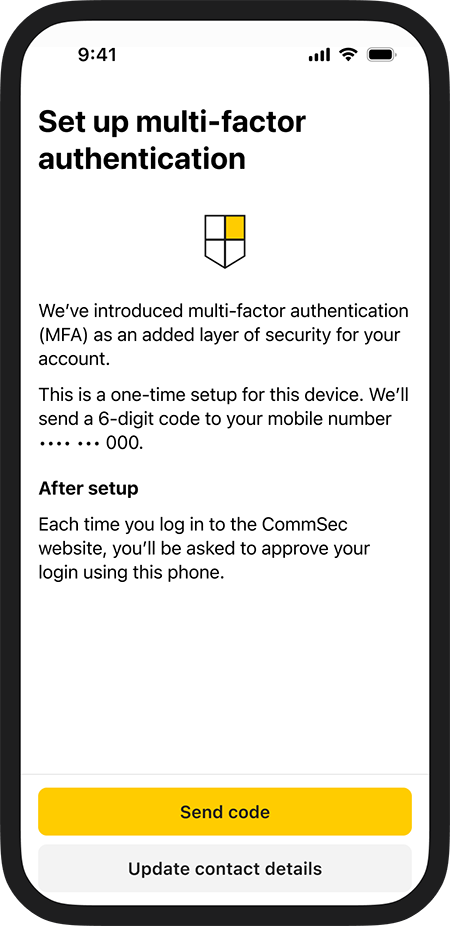
Step 3
We’ll send a 6-digit security code by SMS to the mobile number registered to your CommSec account.
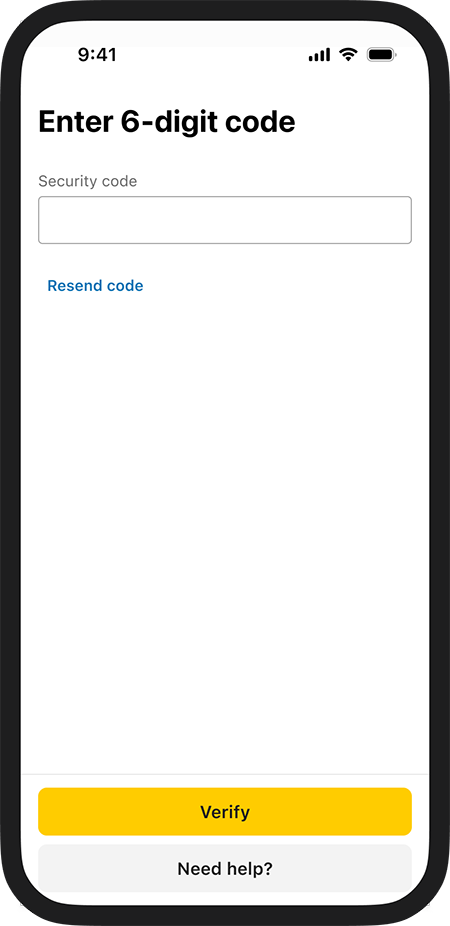
Step 4
Enter the 6-digit code in the CommSec app to finish setup.
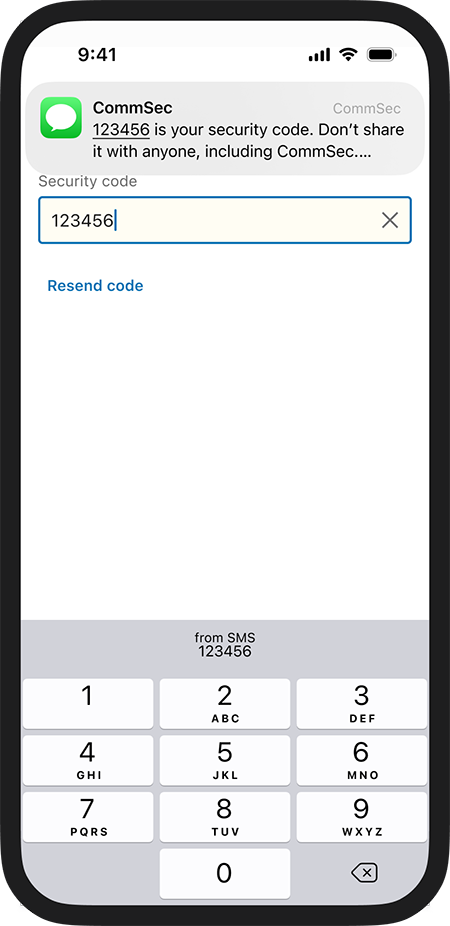
Once setup is complete, your CommSec app becomes a registered device for MFA.
SMS is only used to help set up your device. After that, you’ll approve website login requests in the CommSec app.
Log into the CommSec website
Step 1
Log into your CommSec website with your Client ID and Password.
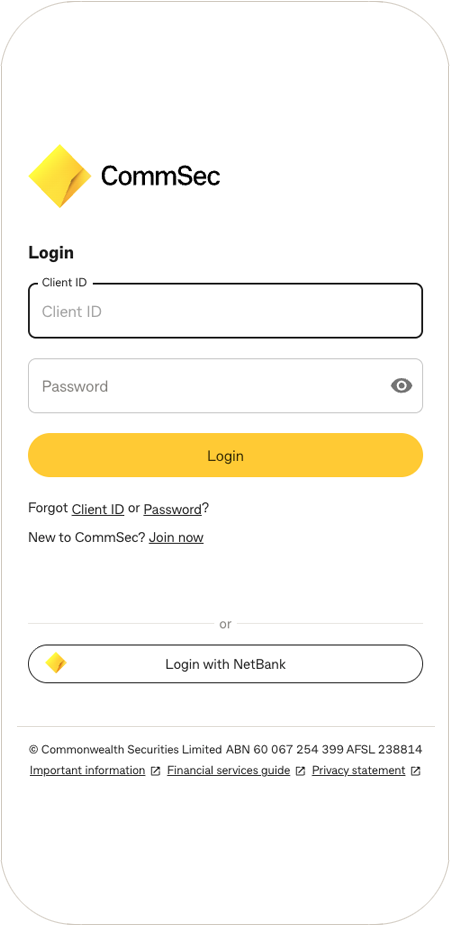
Step 2
You’ll be asked to confirm your login using the CommSec app.
You may also see an option to not be asked again on that browser for 7 days.
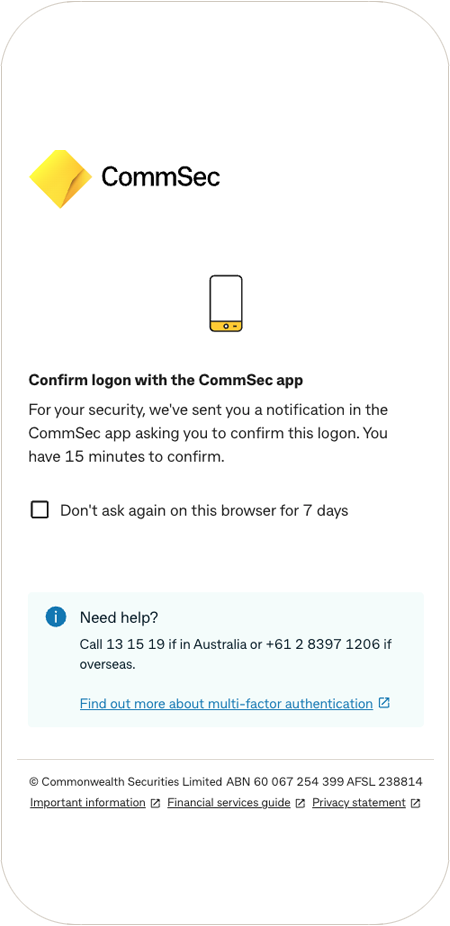
Step 3
We’ll send a notification to your registered device.
Tap the notification to open the CommSec app.
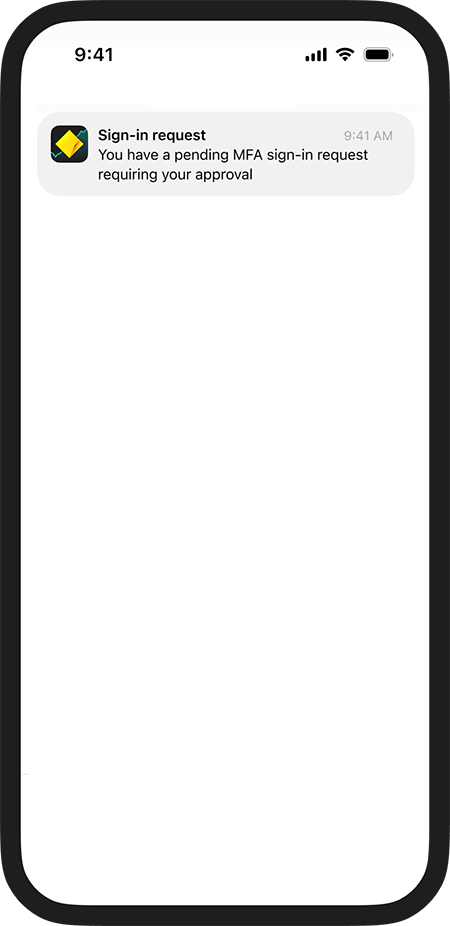
Step 4
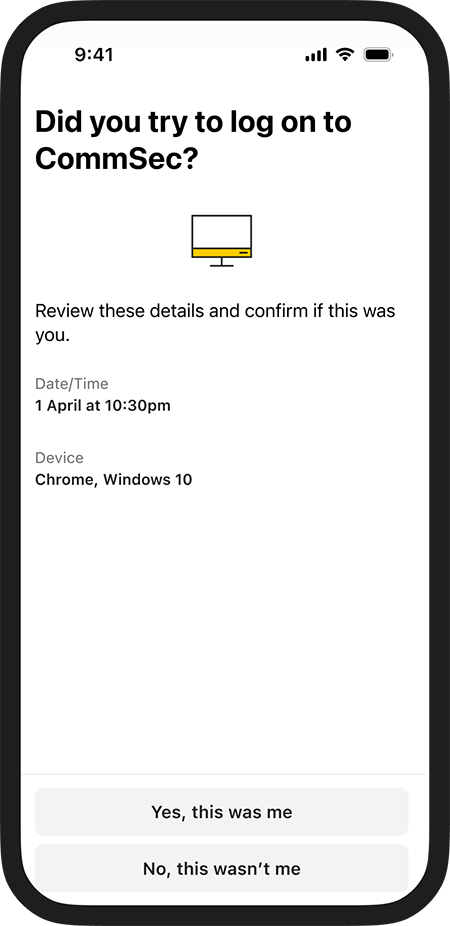
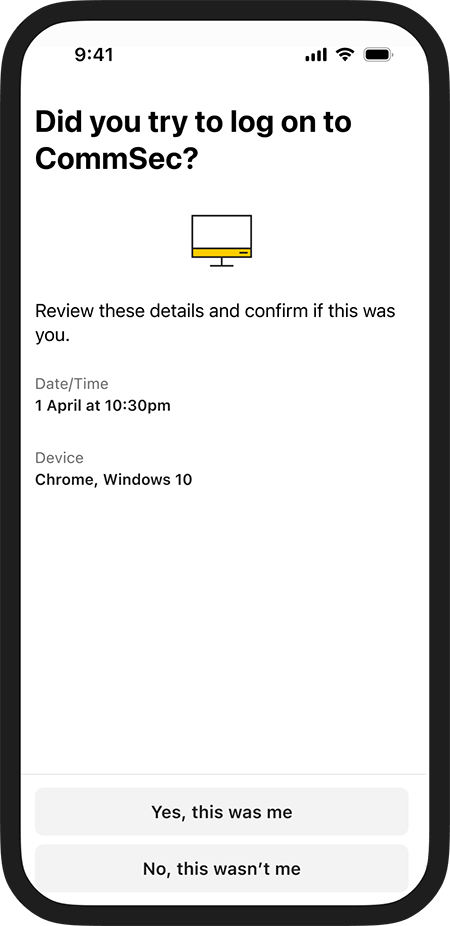
Check the login details, including the date, time and device.
Select Yes, this was me if you started the login.
Once approved, your website login will continue.
Unknown login attempts
Step 1
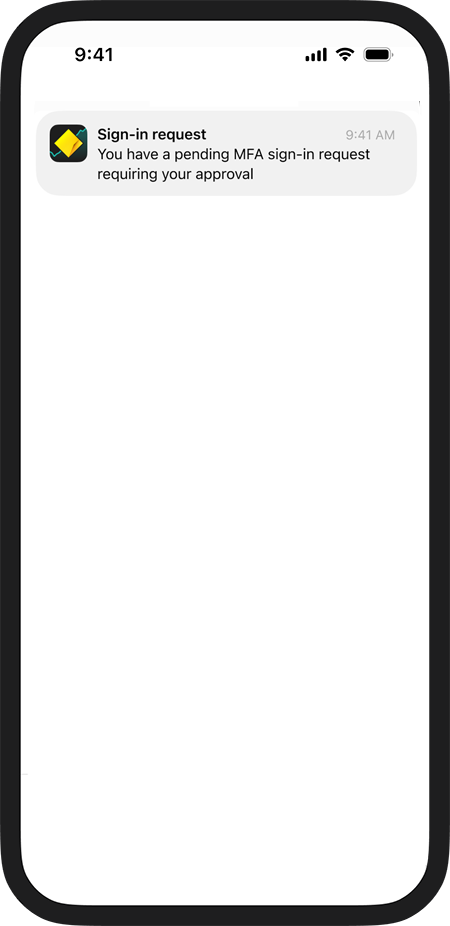
We’ll send a notification to your registered device.
Tap the notification to open the CommSec app.
Step 2
If you don’t recognise the login, select No, it wasn’t me in the CommSec app.
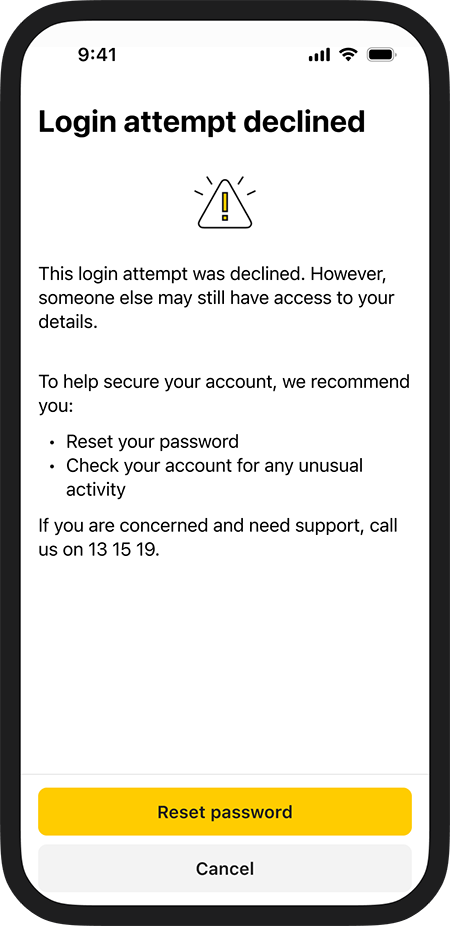
This will decline the login attempt.
Step 4
We will then help you reset your password.
If you’re concerned or need support, contact us.
Ways to stay safe

Keep the CommSec app up to date
The CommSec app works best when it’s up to date.
Keeping your app updated helps make sure you can receive and approve MFA requests.

Turn on notifications
Make sure notifications are turned on for the CommSec app, so you can receive login approval requests on your registered device.
If you don’t receive a push notification, open the CommSec app and check for the request.

Keep your mobile number up to date
You’ll need a current mobile number on your CommSec account to set up MFA on a device.
If your mobile number changes, update your contact details as soon as possible.

Protect your device and login details
Keep your device secure and don’t share your password, SMS verification codes or app access with anyone.
Your questions, answered
Find the answers to your questions about CommSec multi-factor authentication.
Multi-factor authentication is an extra layer of security when you log into the CommSec website.
It uses two factors to help confirm it’s really you:
- Something you know, such as your Client ID and password.
- Something you have, such as your registered CommSec app on your mobile device.
This helps protect your account from unauthorised access, including where a scammer may have your password.
- You’ll need to download or update the CommSec app and log in.
- When prompted, follow the steps to set up MFA on your device. We’ll send a 6-digit security code by SMS to the mobile number registered to your CommSec account.
- Enter the code in the CommSec app to complete setup.
No. MFA is for CommSec website login only.
You can continue to log in to the CommSec app using your password, PIN or biometrics, as you do today.
Not every time.
After you successfully approve a website login using MFA, you may not be asked again on the same browser for a period of time.
For your security, we may still ask you to complete MFA again when needed.
If you don’t have a registered CommSec app device, you can continue to log in to the CommSec website using your Client ID and password.
However, MFA gives you an extra layer of security. By downloading and setting up the CommSec app, you’ll be able to use this additional protection for website logins.
If you lose your phone or get a new device, download the CommSec app on your new device and follow the steps to set up MFA again.
You’ll need access to the mobile number registered to your CommSec account to receive the 6-digit SMS code.
If you can’t access your registered device or mobile number, contact us for help. We’ll need to verify your identity before we can assist.
First, check that notifications are turned on for the CommSec app in your device settings. If you still don’t receive the push notification, open the CommSec app and check for the login approval request.
You can also check your internet connection and try to log in to the CommSec website again. If you’re still having trouble, contact us for support.
You can try the following:
- Update the CommSec app to the latest version.
- Open the CommSec app before trying to log in to the website again.
- Check that your device has internet connection.
- Check that notifications are turned on for the CommSec app.
If MFA still isn’t working, contact us for help.
If you receive a CommSec app login request you don’t recognise, select No, it wasn’t me.
This will decline the login attempt.
You should then reset your password and check your account for any unusual activity.
If you notice anything suspicious or need support, contact us.
MFA has been introduced as an extra layer of security to help protect CommSec accounts.
If you have set up the CommSec app as a registered device, you may be asked to approve CommSec website logins using the app.
If you don’t have a registered CommSec app device, you can continue to log in to the website using your Client ID and password only.
If you need help accessing your account or using MFA, contact us.
The SMS code is only used when setting up MFA on your device. After your device has been set up, the CommSec app is used to approve website login requests.
Yes. You can set up more than one compatible mobile device for MFA.
Each device will need to be set up using the CommSec app and a 6-digit SMS code sent to the mobile number registered to your CommSec account.
CommSec Mobile app is free to download however your mobile network provider may charge you for accessing data on your phone. CommSec Mobile app Terms of Service can be found at https://www.commsec.com.au/features/commsec-app.html